RoadMap Central Integration in Mewayz (Formerly Seemless)
Discover how to integrate RoadMap Central into Mewayz (Formerly Seemless) to enhance user engagement and streamline your project management. Try it now!
Introduction
RoadMapCentral is a comprehensive roadmap management add-on designed to help organizations collect ideas, manage feedback, and clearly communicate roadmap progress with stakeholders. It allows you to create multiple roadmaps, each with its own structure, workflow, and public-facing interface. Using customizable tabs, statuses, and categories, teams can organize ideas in a structured and transparent way.
The system includes an admin dashboard for analytics and management, along with a public roadmap website where users can view roadmap content and submit new ideas. RoadMapCentral also supports branding customization, SEO settings, cookie compliance, and Progressive Web App (PWA) functionality, ensuring each roadmap is both professional and user-friendly.
How to Install the Add-On?
To Set Up the Roadmap Central Add-On, you can follow this link: Setup Add-On.
How to use the Sales Add-On?
RoadMap Central Dashboard
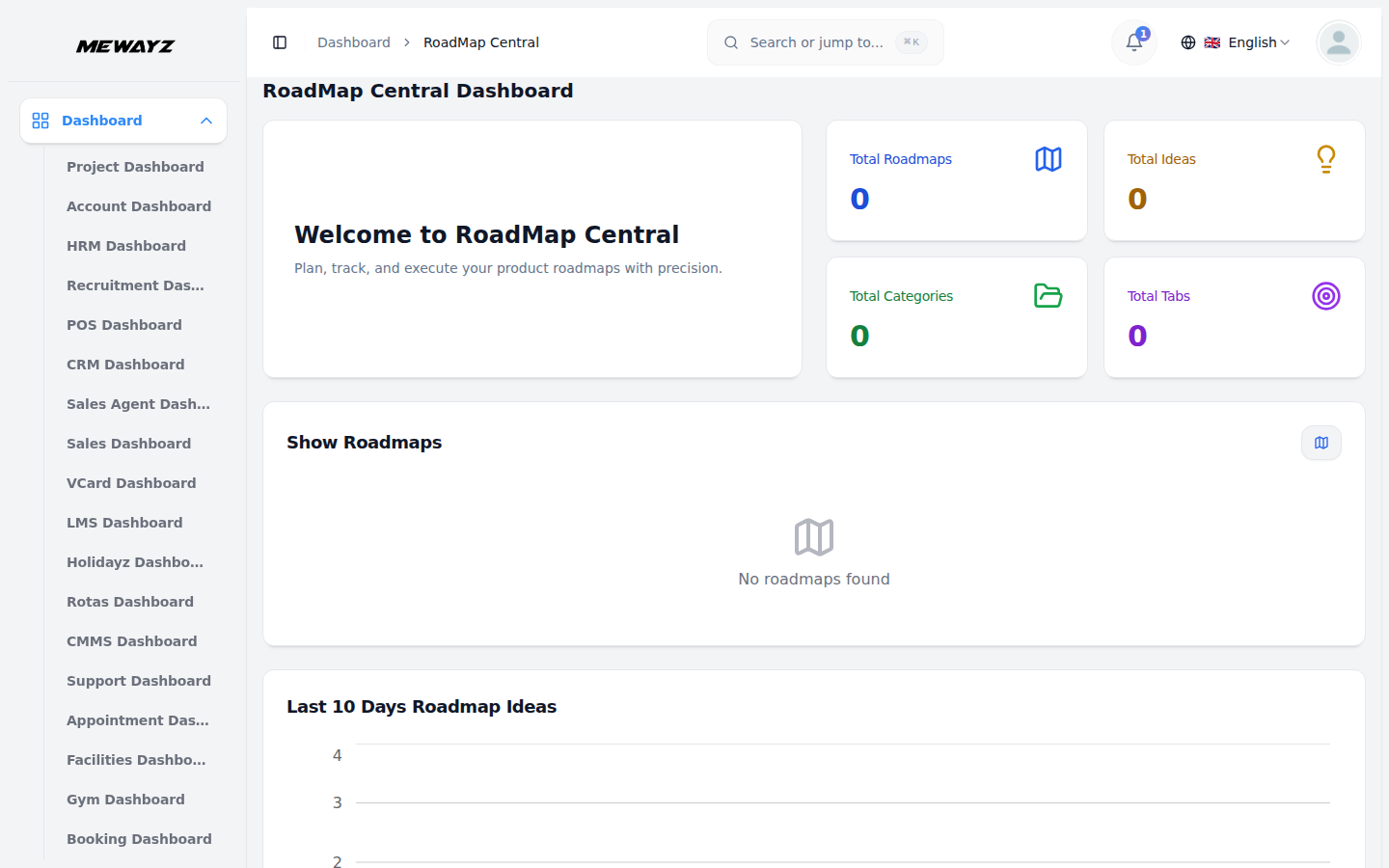
The RoadMap Central Dashboard provides a quick overview of your roadmap activity and performance. From this screen, you can easily understand how many roadmaps, ideas, categories, and tabs are currently managed within the system.
At the top of the dashboard, a welcome section introduces RoadMap Central and highlights its purpose—helping you plan, track, and manage product roadmaps efficiently. From here, you can quickly copy the first roadmap’s public URL using the Copy Roadmap URL button or open the roadmap directly using the View Roadmap option. A QR code is also available, allowing instant access to the roadmap on mobile devices.
The dashboard displays key summary cards showing Total Roadmaps, Total Ideas, Total Categories, and Total Tabs. These cards give you an instant snapshot of your roadmap structure and idea volume without navigating into individual modules.
In the Show Roadmaps section, you can see all roadmaps with the title, slug, description, copy link button, status, and date.
Below the summary section, the Last 10 Days Roadmap Ideas chart visually represents the number of ideas created each day. This chart helps you track user engagement and identify trends in idea submissions over recent days.
Manage RoadMaps
To create a new roadmap, click the Create button on the Manage RoadMaps page. A modal opens where you enter the basic roadmap details.
You must provide a Roadmap Name, which is required. Optionally, you can add a Description to explain the purpose of the roadmap. You may also upload a Logo and Favicon to visually represent the roadmap on both admin and public pages. The Active toggle controls whether the roadmap is immediately available or temporarily disabled. Once you click Create, the roadmap is saved and appears in the roadmap list view for further management.
The roadmap list page displays all roadmaps in a table with columns for Roadmap Logo, Roadmap Name, Status (Active or Inactive), and Created At. Each roadmap includes actions to copy the roadmap link, edit roadmap settings, or delete the roadmap.
When you click Edit, you are taken to the roadmap configuration area, which contains eight sections: Basic Information, URL Configuration, PWA Settings, SEO Settings, Pixel Fields, Custom Code, System Setup in you can manage Manage Tabs, Manage Status, Manage Categories, and Cookie Settings. These sections control both the internal setup and the public appearance of the roadmap.
1. Basic Information
The Basic Information section defines the core identity of the roadmap. Here, you can update the roadmap name, description, and activation status. You can upload or change the Logo and Favicon, which are displayed on the public roadmap.
Additional customization includes selecting a Font Family, setting a Default Language, and defining the Color Theme. Primary, secondary, accent, and text colors determine the visual appearance of the public roadmap.
A live Preview Panel on the right side shows how the roadmap will appear on the frontend as you make changes.
2. URL Configuration
The URL Configuration section allows you to define a unique roadmap slug. This slug becomes part of the public roadmap URL and must be unique.
Once saved, the roadmap can be accessed through this generated URL. A validation message confirms whether the selected slug is available.
3. PWA Settings
The PWA Settings section enables Progressive Web App functionality. When enabled, users can install the roadmap as a web app on their devices.
This setting improves performance and accessibility, especially for mobile users. If disabled, the roadmap functions as a standard web page.
Once you enable the PWA toggle, you can enter App Name, App Description, and select the Theme Color and the Background Color for your web app.
4. SEO Settings
The SEO section provides comprehensive website optimization and tracking tools. Configure Meta Title, Meta Description, Meta Keywords, and upload an Open Graph Image for social media sharing. These settings help improve your roadmap’s visibility and tracking across search engines and social platforms.
5. Pixel Fields
The Pixel Fields section allows you to integrate tracking and analytics tools. You can add multiple tracking pixels by clicking Add Pixel and entering the required pixel details. Select the Type from the dropdown, and enter pixel ID or code.
A Custom Tracking Code field is also available for inserting additional analytics or monitoring scripts. Pixels can be removed or updated as needed.
6. Custom Code
The Custom Code section allows advanced customization using JavaScript and CSS.
- Custom JavaScript can be added without script tags for enhanced interactivity.
- Custom CSS allows styling adjustments without affecting the global theme.
These changes apply only to the selected roadmap and do not impact others.
7. System Setup
Tab Configuration and Management
- The Tabs section allows you to organize your roadmap content into different categories or phases. To create a new tab, click the “Create” button and enter a tab name, along with setting its status as Active or Inactive using the toggle option. Only active tabs are displayed on the frontend, ensuring users see only relevant roadmap phases.
- The list page shows all configured tabs with their Name and Status, and the first column includes a drag-and-drop control (::) that allows you to change the order of tabs easily; this order is reflected directly on the frontend, displaying tabs from left to right based on the saved sequence.
- Available actions include Edit, which allows modification of the tab name or status, and Delete, which removes the tab from both backend management and the frontend roadmap view. This setup ensures flexible control over tab visibility, sequence, and structure while keeping the frontend roadmap clean, organized, and aligned with project progress.
Status and Category Management
- The Status section helps you define workflow stages for your ideas and projects. To create a new status, click the “Create” button and fill in the status name, select a color for visual identification, and choose which tabs this status applies to from the tab dropdown. The list page displays all statuses with the Name and Tab columns.
- You can use drag and drop functionality to change the order of statuses, which affects how they appear in workflows and displays. Available actions include Edit to modify status details and Delete to remove statuses from the system.
- In the Category section, create organizational categories for your ideas by clicking the “Create” button. Enter the category name and select a color for visual distinction, and manage the status(Active or Inactive) using the toggle button. The list page shows all categories with the Name, Color, and status columns. Use drag and drop functionality to reorder categories as needed, and utilize Edit or Delete actions to manage existing categories.
8. Cookie Settings
The Cookie Settings section controls user consent and compliance. You can enable or disable the cookie pop-up displayed on the public roadmap.
When enabled, visitors are informed about cookie usage, ensuring transparency and compliance with data protection regulations. Cookie Title, Cookie Description, Contact Us Description, and Strictly Necessary Cookies enable or disable management. If this enables, then enter the Strictly Cookie Title, Strictly Cookie Description, and you can enter the Contact Us URL for user inquiries.
Ideas Management
- The Ideas Management module allows you to create, organize, and track ideas within specific roadmaps, categories, and tabs. To create a new idea, click the Create button on the Ideas Management page. In the create form, enter the Idea Name and Description, then select the Roadmap from the dropdown, which is loaded from the RoadMaps module. Next, choose a Category from the Categories module available in System Setup, and select the appropriate Tab that has been created under the selected roadmap. You can control the visibility of the idea by setting its Status as Active or Inactive using the toggle button. Once saved, the idea becomes part of the selected roadmap structure.
- The Ideas list page displays all created ideas in a structured table with columns such as Name, RoadMap, Category, Tab, Tab Status, Status, and Created At. You can quickly locate specific ideas using the Search option or apply filters using the Filters button. A roadmap dropdown filter allows you to view ideas related to a specific roadmap only. Each idea row includes actions such as View to see complete details, Edit to update idea information, and Delete to remove the idea from the system.
- When you click View on an idea, you are taken to the detailed Idea View page. At the top of this page, you can see summary counters showing the total number of Attachments and Notes added to the idea. Below this, the Idea Details section displays information such as RoadMap, Category, Tab, Tab Status, Created Date, Created By, and the current Idea Status, which can be changed directly using the status toggle. The Description is displayed in full and can be edited if needed, and files can be uploaded in the Attachments section to support the idea with documents or references.
- The Notes section allows you to track additional comments or updates related to the idea. You can add a new note by entering text in the textarea and clicking the Add Note button. All added notes are listed below, where they can be edited or deleted as required. In the General view, you can review attachment and note counts, view uploaded files added from the frontend side, verify the assigned tab and category, and review the complete idea description. This structured layout ensures clear visibility, easy collaboration, and efficient management of ideas throughout the roadmap lifecycle.
RoadMap Central Website
- To open this page, you can copy the link either from the dashboard or from the roadmap section. The RoadMap Central website provides a public-facing interface where visitors can interact with your roadmaps and submit new ideas. The header section displays your configured logo, RoadMap name, description, and language dropdown.
- RoadMap Phases section shows the tab name of the roadmap. Each tab contain it’s category with its idea count.
- After clicking on any category, it navigates to the category section, which shows Category Name, idea count, and a button for adding a new idea to that category. It shows four filters to find a specific idea. Each idea shows the name of the idea, description, status, and createdby name.
- To create the new idea, click on the ‘Add Idea’ button, and a pop-up opens, fill value like idea title, description, priority level, and attachment, and then click on the submit idea button.
- After clicking on any idea, you navigate to the detailed page of the idea, which shows the idea name, description, status, createdby name, created at date, and category. Then it shows attachments and notes attach with idea.
- The website layout and functionality depend entirely on the configurations you set up in the roadmap management sections, ensuring consistency between your admin settings and public presentation.