Budget Planner Integration in Mewayz (Formerly Seemless)
The Budget Planner Add-On helps you create and manage financial budgets for your organization by tracking income and expense categories across different time periods.
Introduction
Budget Planner is a comprehensive financial planning and monitoring Add-On that helps you create, manage, and track your organisation’s budgets throughout the year. It automatically monitors your spending against allocated budgets and provides real-time insights into your financial performance. Users can create budget periods, define specific budgets, allocate amounts to the chart of accounts, and receive automated spending tracking with variance analysis.
Note: This Add-On is dependent on the Accounting Add-On, so you need to purchase it first.
How To Install The Add-On?
To Set Up the Budget Planner Add-On, you can follow this link: Setup Add-On.
How to use the Budget Planner Add-On?
Budget Period
- To create a new budget period, click the “Create” button at the top of the budget period page.
- The list page shows all budget periods in a table with columns for Period Name, Financial Year,
- Budget periods follow a status flow from Draft to Approved to Active to Closed. Periods must be
Enter the period name, define the financial year, and set the start and end dates based on this date; your system calculates the budget yearly. The period is initially saved as Draft status.
Start Date, End Date, Status, and Actions. You can use the Search to filter records.
approved before budgets within them can be activated. Available actions in the Action column include Edit (modify period details), Approve (change status from Draft to Approved), Activate (set status to Active), Close (end the period), and Delete.
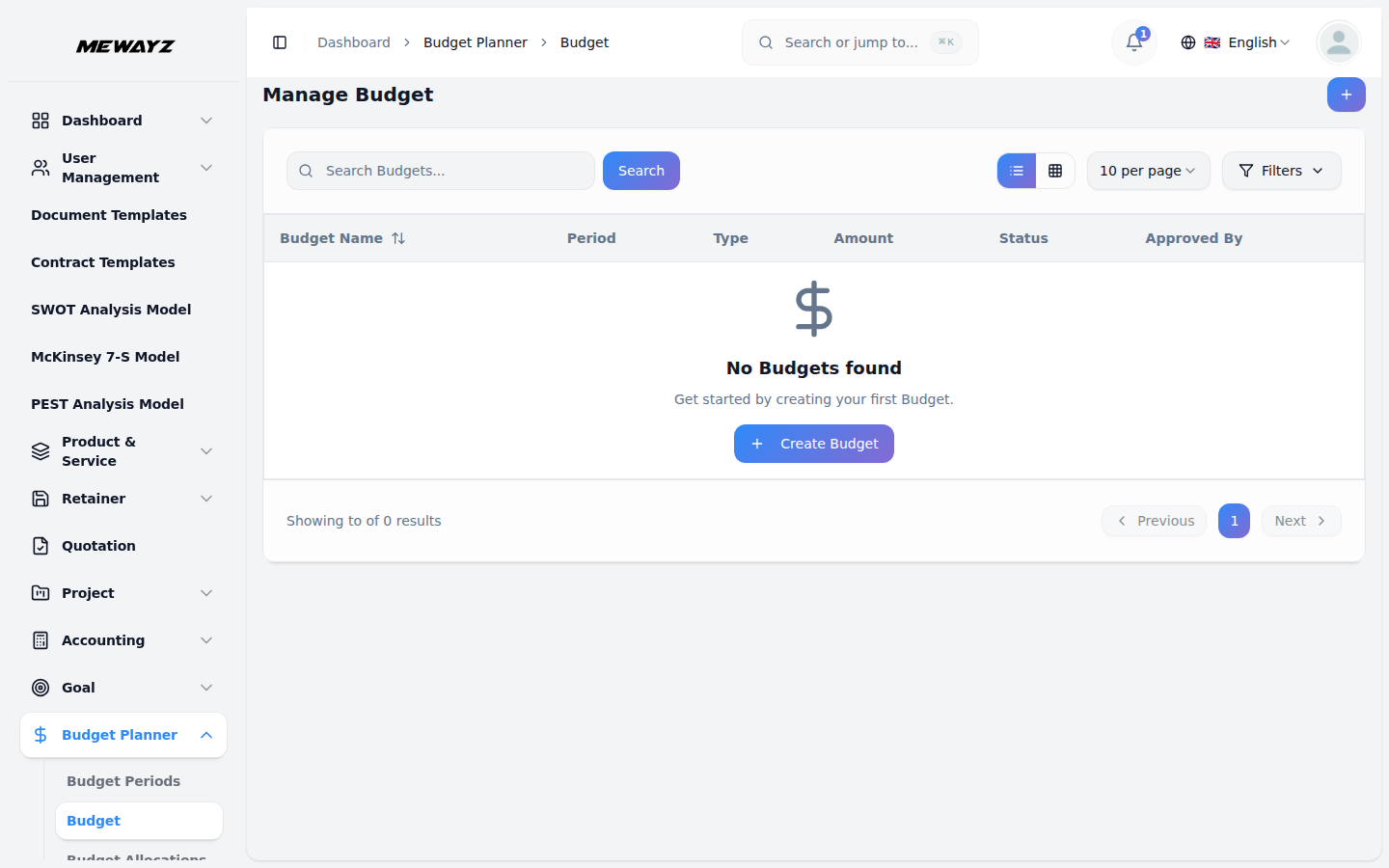
Manage Budget
- To create a budget, click “Create” and enter the budget name, select the budget period from the
- The list page displays budgets with columns for Budget Name, Period, Type, Total Amount, Status,
- In the Actions column, you’ll get to see approve, edit, or delete buttons. When you click the
dropdown(which comes from the budget period section), choose the budget type from the dropdown (optional, capital, cash flow), and set the total budget amount. Save the budget as Draft.
Approved by, and Actions. Search bar to find a specific budget record, use the available grid or list view toggle button.
approve button, edit, or delete, and converts to an active option. Clicking the active button automatically converts it into a close option. According to this action process, status changes based on your action.
Budget Allocation
- To create a new budget allocation, click the green “Create” button at the top-right corner of
- The list page shows all budget allocations in a table with columns for Budget, Account,
- Each budget allocation displays the allocated amount, tracks the spent amount, and calculates
- Available actions in the Actions column include: edit to modify budget allocation details.
- Budget allocations help distribute funds across different accounts within a budget and monitor
the Manage Budget Allocations page. Select a budget from the dropdown (which comes from the budget section), choose an account from the dropdown (which is generated from the account Add-On), and enter the allocated amount.
Allocated Amount, Spent Amount, Remaining Amount, and Actions. Use the Search bar to find specific budget allocations, and apply filters using the Budget dropdown (Filter by Budget) and Account dropdown (Filter by Account). Click Apply to activate filters or Clear to remove them.
the remaining amount automatically (Remaining Amount = Allocated Amount – Spent Amount).
Delete to remove budget allocation permanently.
spending against allocations. The Remaining Amount column provides quick visibility into available funds for each account allocation.
Budget Monitoring
- The Budget Monitoring page provides a read-only view to track and analyze budget performance
- The monitoring list page table displays columns for Budget, Date, Allocated, Spent, Remaining,
- The Remaining column shows unspent funds (Allocated – Spent), and the Variance % column
- Budget monitoring entries are automatically generated based on budget allocations and spending
over time. Use the Search bar to find specific budget records, and apply filters using the Budget dropdown (Filter by Budget) and Date Range date picker to view budget data for specific periods. Click Apply to activate filters or Clear to remove them.
and Variance %. Each row represents a snapshot of budget status at a specific date, showing how allocated amounts compare to spent amounts over time.
indicates performance against the budget, with positive percentages showing under-spending and negative percentages showing over-spending.
activities. This page provides historical tracking and trend analysis to help identify spending patterns, monitor budget compliance, and make informed financial decisions. Use date range filtering to compare performance across different time periods.
Integration Features
- Budget Planner integrates with your Chart of Accounts to link budgets to existing account
- User Management tracks who created and approved budgets for accountability. Date range
structures. It connects to Journal Entries for automatic spending tracking from posted transactions.
validation respects budget period dates to ensure accurate calculations and prevent tracking outside defined periods.