Biometric Attendance Integration in Mewayz (Formerly Seemless)
Biometric Attendance is a software product designed to help organizations record and manage employee attendance through biometric devices.
Introduction
Biometric Attendance is a software product designed to help organizations record and manage employee attendance through biometric devices. The main goal of this software is to automate attendance tracking by capturing accurate time logs when employees check in and out. This eliminates manual errors and simplifies attendance monitoring. The product includes two key sections: Manage Attendance and Biometric Settings. The Biometric Setting section is where you configure the connection between the software and the biometric device or biometric data API. Without this configuration, attendance data cannot be properly fetched or synchronized.
Note: Please note that you can use the biometric attendance system only if you are using the ZKTeco machine.
You can only use this module if the API supports the ZKteco Machine. Follow this ZKBioTime API for API Documentation: https://www.zkteco.com/en/ZKBioTime_API
How to Install the Biometric Attendance Add-On?
To Set Up the Biometric Attendance Add-On, you can follow this link: Setup Add-On.
How To Use The Biometric Attendance Add-On?
Manage Attendance
This Add-On is used to access and handle the biometric attendance records collected from the biometric device or API.
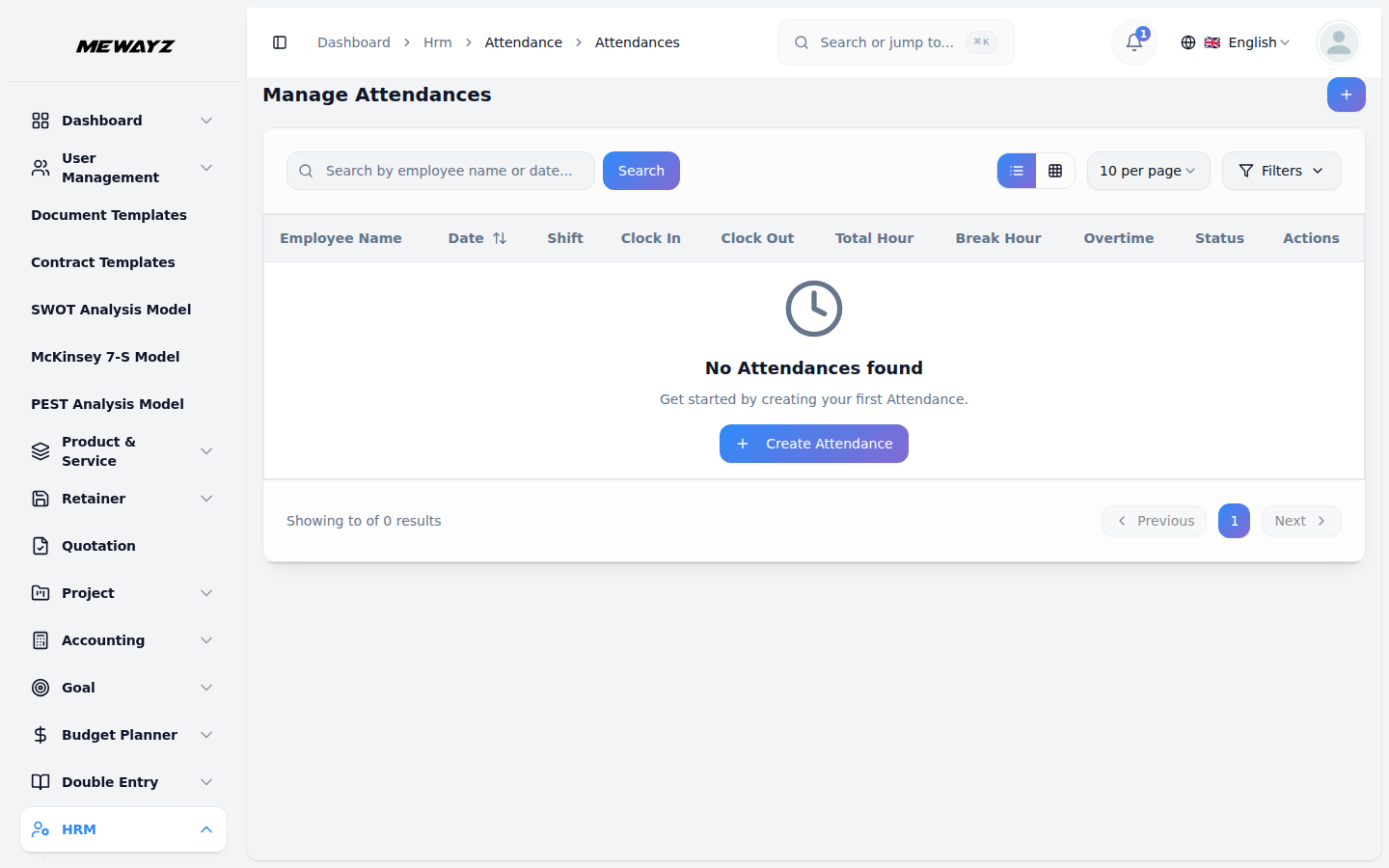
- When you open the Manage Attendance section, you will see a list
- To transfer the attendance data into the HRM Add-On, you have two
- Click the Sync all button at the top of the page to
- Alternatively, you can sync attendance records one by one by
- It is important to regularly sync attendance data to keep the HRM
- You will see a filter section at the top of the attendance page from
page displaying all attendance entries in a table. The table includes the following columns: Employee, Date, Clock In, Clock Out, Biometric ID, and Status.
options:
synchronize all attendance records at once. This action sends the entire attendance data to the HRM attendance section for further use.
clicking the Sync button available in the action column for each record. This allows you to selectively update attendance data if needed.
system updated and accurate.
where you can enter the start date and end date, and search for the attendance easily.
Biometric Setting (System Setup)
The Biometric Setting section is essential for establishing the connection between the software and the biometric device or data service. Without setting up this connection correctly, attendance data will not be accessible in the Manage Attendance section.
- In this section, you will find a form with the following fields:
- ZKTeco Api URL: Enter the API endpoint URL
- Username: Enter the username required to
- Password: Enter the password corresponding to
provided by your biometric device or service.
authenticate with the biometric API.
the username for API authentication.
- After entering these details, you must click the **Generate
Token** button. This action will:
- Save the entered information securely.
- Generate an authentication token that allows the software to
communicate with the biometric device or service.
- The token generated here is necessary to fetch biometric attendance
data automatically. Without generating this token, the Manage Attendance section will not be able to retrieve or sync any attendance records.
Connection Between Sections
- The Biometric Setting section must be set up first
- The authentication token generated in the Biometric Setting section
- Once the data is generated and visible in the Manage Attendance
before using the Manage Attendance section effectively.
enables the system to connect with the biometric API and generate attendance data.
section, you can sync it with the HRM system to maintain updated employee attendance records.