School/Institute Management Integration in Mewayz
School / Institute Management Add-On revolutionizes administrative processes within educational institutions.
Introduction
The school management add-on provides a comprehensive, role-based dashboard and an integrated system to streamline academic, administrative, and operational tasks. It covers everything from admissions, student and parent records, employee management, and fee collection to transport, events, and alumni tracking. Each module, such as grades, classes, subjects, timetables, and health records, offers intuitive creation, editing, and filtering options, while dashboards display real-time statistics, upcoming events, notices, and meetings. With personalised views for parents, students, and teachers, plus robust branch, department, and designation management, the add-on ensures efficient oversight and smooth coordination across all aspects of school operations.
How to Install the Add-On?
To Set Up the school Add-On, you can follow this link: Setup Add-On.
How to Use the School Add-On?
School Main Mewayzboard
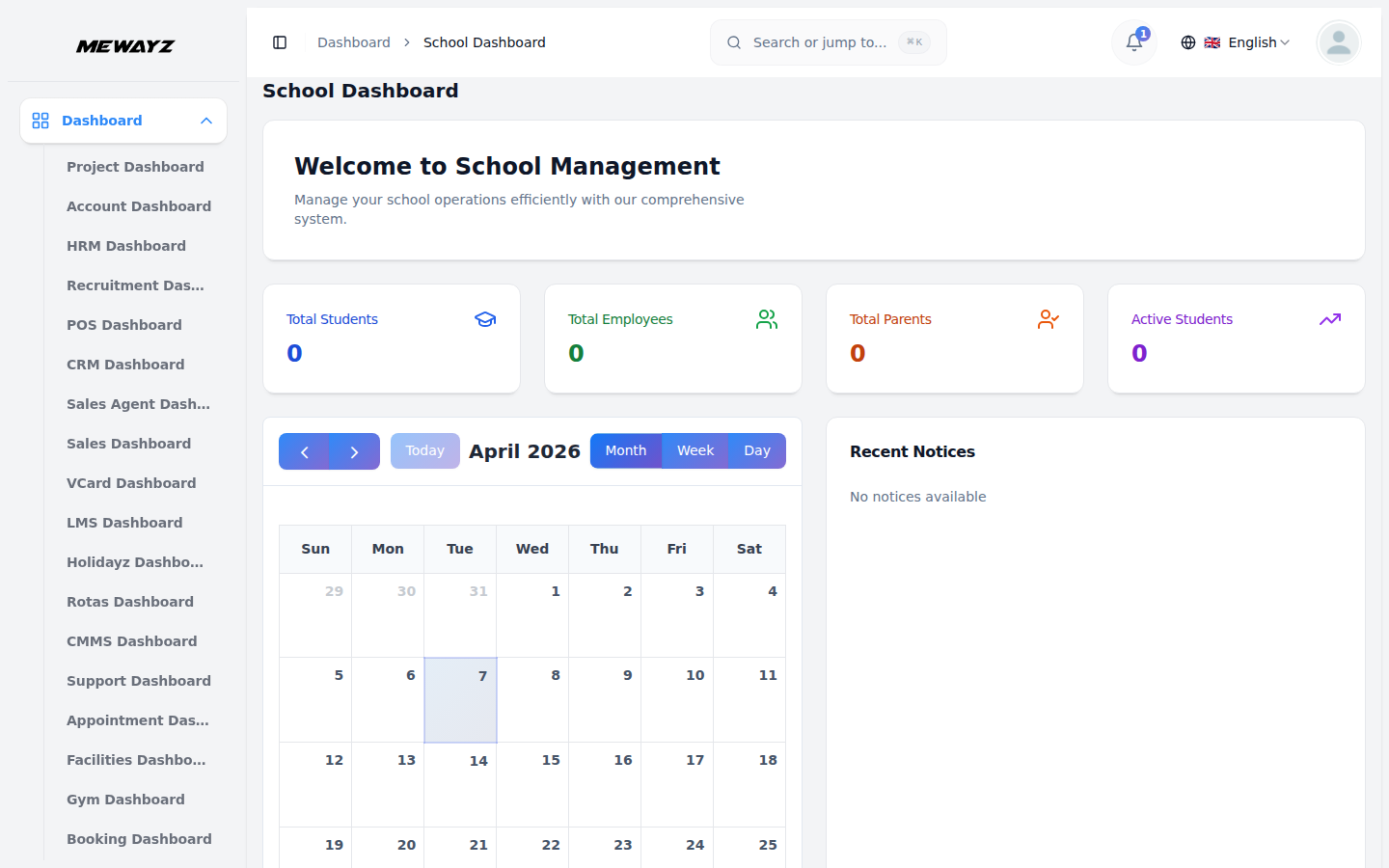
- When you access the School Dashboard, you will see Summary Statistics at the top displaying Total Students, Total Employees, Total Parents, and Active Students. You can click on any card to view detailed reports and breakdowns for that specific category.
- You will find an interactive Calendar View in the centre of the dashboard where you can switch between Month, Week, and Day views using the toggle buttons, and see the specific date of an event. Navigate using left/right arrow buttons, click the “Today” button to return to the current date, and click on any date or time slot to view or add events.
- The Recent Notices panel on the right side displays important school announcements and updates, such as payment deadline extensions, competition registrations, policy updates, and program announcements. Each notice includes a title, a brief description, and a date stamp so that you can read the full details.
- In the Upcoming Events section at the bottom left, you will see scheduled events listed chronologically with their dates, such as Athletic Meet (2026-04-09).
- The Quick Stats section shows real-time operational metrics, including Present Today, Active Classes, and New Notices. These statistics update automatically throughout the day.
- The Upcoming Meetings section on the bottom right displays scheduled meetings with date badges and specific times, such as Weekly Staff Meeting (2026-02-06 at 14:00).
Role-Based Dashboard Access
- When you log in as a Parent, you will see Child Attendance instead of general attendance, Pending Fees showing your child’s outstanding fees, Child Homework displaying assignments for your child, and a personalized welcome message with your name and child’s details.
- When you log in as a Student, you will see My Attendance showing your personal attendance percentage, Pending Fees displaying fees you need to pay, My Homework showing assignments you need to complete, and a personalized welcome message with your grade and section details.
- When you log in as a Teacher, you will see My Classes showing the number of classes assigned to you, Today Attendance displaying the attendance count you need to mark, Pending Homework showing assignments you need to evaluate, and a personalized welcome message.
System setup
Branch Management
- To create a new Branch, click the “Create” button at the top of the Branch page. Enter the branch name and branch code in the required fields. Add the address details. Enter the contact number or add the email address for the branch.
- Then select the branch status as Active or Inactive from the dropdown menu. Click “Create” to save the new branch details.
- The Branches list page displays all branches in a table format with columns including Name, Code, Address, Phone, Email, Status, and Action. Available actions include Edit to modify branch details and Delete to remove a branch.
Department Management
- To create a new Department, click the “Create” button at the top of the Departments page. Enter the name and code in the required fields. Add the description details.
- Enter the Head of Department or select the branch from the dropdown menu(which comes from the branch section). Then select the department status as Active or Inactive from the dropdown menu.
- The Departments list page displays all departments in a table format with columns including Name, Code, Description, Head of Department, Status, and Action. Available actions include Edit to modify department details and Delete to remove a department.
Designation Management
- To create a new Designation, click the “Create” button at the top of the Designations page. Enter the designation name and designation code in the required fields. Add the description details.
- Enter the level or select the department from the dropdown menu(comes from the department section). Then select the designation status as Active or Inactive from the dropdown menu.
- The Designations list page displays all designations in a table format with columns including Name, Code, Description, Level, Status, and Action. Available actions include Edit to modify designation details and Delete to remove a designation.
Event Types
- To create a new Event Type, click the “Create” button at the top of the Event Types page. Enter the event type name and event type code in the required fields. Select the colour from the colour picker. Add the description details. Then select the event type status as Active or Inactive from the dropdown menu.
- The Event Types list page displays all event types in a table format with columns including Name, Code, Colour, Description, Status, and Action. Available actions include Edit to modify event type details and Delete to remove an event type.
Health Record Types
- To create a new Health Record Type, click the “Create” button at the top of the Health Record Types page. Enter the name and code, and the description details. Then select the health record type status as Active or Inactive from the dropdown menu.
- The Health Record Types list page displays all health record types in a table format with columns including Name, Code, Description, Status, and Action. Available actions include Edit to modify health record type details and Delete to remove a health record type.
Manage Admissions
- To create a new admission, click the “Create” button in the top-right corner. The system guides you through 5 steps: Basic Info, Student, Parent/Guardian, Academic, and Documents.
- In Step 1 (Basic Info), the Admission Number is displayed (This number is automatically generated based on your admission prefix setting.); add the Application Date, enter the Class Applying For and the Academic Year, select the Admission Status from the dropdown (Pending, Approved, or Rejected), choose the Branch from the system-configured dropdown, enter any notes in the Remarks filed, and click Next to proceed.
- In Step 2 (Student), under Personal Information, enter the First Name, Middle Name, and Last Name, select the Date of Birth, choose the Gender from the dropdown, and enter the Blood Group. In the contact information, enter Email and Phone number, or add the Profile Picture by choosing the file.
- Under Background Information, enter Nationality, Religion, Caste, and Category. Under Address Information, enter Address, City, State, Zip Code, and Country. Then click Next to continue or Previous to go back.
- In Step 3 (Parent/Guardian), under Father Information, enter the Father Name, Father Phone, and Father Email, and add the Father Occupation, Father Qualification, and Father Income.
- Under Mother Information, enter the Mother Name, Mother Phone, Mother Email, Mother Occupation, Mother Qualification, and Mother Income; under Guardian Information (Optional), enter the Guardian Name, Guardian Phone, Guardian Email, Guardian Relation, and Guardian Address; then click Next to proceed.
- In Step 4 (Academic), enter Previous School Name, Previous School Board, Previous Class, Previous Percentage, and Medium of Instruction under Previous Academic Information. Under Additional Requirements, check boxes for Transport Required, Hostel Required, Fee Concession Applied, or Scholarship Applied as needed, then click Next to continue.
- In Step 5 (Documents), select the required document checkboxes, including Birth Certificate, Transfer Certificate, Marksheet, Address Proof, Income Certificate, Caste Certificate, and Passport Photos, and click Create to finalise the admission or Previous to review earlier sections.
- On the list page, you’ll get to see the entire admissions table of column including Admission Number, Student Name, Email, Phone, Class Applying For, Application Date, Branch Name, Status, and Actions columns. Each record you can edit or delete with the help of the Actions column.
- Use the search bar to find the admissions record. Apply filters by clicking “Filters”, which shows selecting Admission Status from the dropdown (Pending, Approved, or Rejected), choosing Branch from the dropdown(which comes from the system setup), then clicking Apply to activate the filters or Clear to reset them. Toggle between list view and grid view using the icons.
Academic Management Grade Management To create a new Grade, click the “Create” button at the top-right of the Manage Grades page. Enter the Grade Name and Grade Code in the code field. Add the Description details. Select the Status as Active or Inactive from the dropdown menu. The list page displays all grades in a table format with columns including Name, Code, Description, Status, and Action. It allows you to use the search bar to find specific grades, and lets you click Filter to select the Status from the dropdown (Active or Inactive) and then click Apply to activate the filter or Clear to reset it. Available actions include Edit to modify grade details and Delete to remove a grade from the system. school institute management Class Management To create a new Class, click the “Create” button on the Class page. First, enter Class Name and Class Code. Select the Grade from the dropdown menu(which comes from the grade dropdown). Select the Branch from the dropdown menu(comes from the system setup). Enter the Capacity or add the Description details, then select the Status from the dropdown menu (Active, Inactive). The list page displays all classes in a table format with columns including Name, Code, Grade, Branch, Capacity, Status, and Action. You can filter classes by grade or search by class name. Apply filters by selecting options from the Filter by Grade, Filter by Branch, and Filter by Status dropdowns, then click Apply to activate the filters or Clear to reset them. Toggle between list view and grid view using the icons. Available actions include Edit to modify class details and Delete to remove a class from the system. school institute management Subject Management To add a new Subject, click the “Create” button, enter the Subject Name and Subject Code, select the Grade from the dropdown (sourced from the Grade section), and choose the Classes from the dropdown (sourced from the Class section). Select the Teacher from the dropdown (sourced from the Teacher section), choose the Type from the dropdown (Core, Elective, Extra), enter the Credit Hours, add the Description details, and then select the Status from the dropdown (Active or Inactive). The list page displays all subjects in a table format with columns including Name, Code, Grade, Classes, Teacher, Type, Credit Hours, Status, and Action. You can search subjects by name or filter by grade. Toggle between list view and grid view using the icons. Apply filters by selecting options from Filter by Grade, Filter by Class, Filter by Teacher, Filter by Type, and Filter by Status (Active or Inactive), then click “Apply” to activate the filters or “Clear” to reset them. Actions include Edit to update subject information, Delete to remove a subject, and View to see which classes are studying this subject. school institute management Class Timetable Management To add a Period, click the “Add Period” button at the top of the page. First, select the class from the dropdown(which comes from the class section), then choose the day of the week from the dropdown menu. Select the subject to be taught during this period from the dropdown (comes from the subject section). Select the Assign the teacher from the dropdown (comes from the teacher section), and add start time or end time. The Total Weekly Hours will be calculated and displayed automatically based on the periods added. The Weekly Timetable section displays all days from Monday to Saturday. Each day shows the total hours scheduled. Click “Add Period” on any day to add a new class period to the timetable. Each added period will display as a card showing the time slot, subject name, subject code, and teacher name. The daily total hours for each day will update automatically as periods are added. school institute management Teacher Timetable Management To view Teacher Timetables, navigate to the Manage Teacher Timetables page. Select the Teacher from the dropdown menu to view their weekly schedule (comes from the teacher section). Once a teacher is selected, the page displays summary information including Total Classes, Total Subjects, and Weekly Hours. The Weekly Schedule section shows all days from Monday to Saturday with the total hours scheduled for each day. Each scheduled period is displayed as a card showing the time slot, subject name, subject code, and class name. The daily total hours for each day are calculated and displayed automatically based on the assigned periods. school institute management Alumni Management To create a new Alumni, click the “Create” button at the top-right of the Manage Alumni page. Enter the Alumni Name. Select the Student from the dropdown menu(comes from the student section). Enter the Graduation Year, Email, Phone, or Degree, enter the Current Occupation and Current Company, select the Status from the dropdown menu (Active or Inactive), enter the LinkedIn Profile URL and Address, and add the Achievements details. The Manage Alumni list page displays all alumni records in a table format with columns including Name, Email, Graduation Year, Occupation, Company, Status, and Action. You can search alumni by name or filter by graduation year or occupation. Toggle between list view and grid view using the icons. Apply filters by entering the Graduation Year in the Filter by Graduation Year field and selecting the Status from the dropdown (Active or Inactive), then click Apply to activate the filters or Clear to reset them. Available actions include Edit to update alumni information and Delete to remove an alumni record from the system. school institute management Events management To create a new Event, click the “Create” button at the top of the Manage Events page. Enter the Event Title. Select the Event Date, and choose the Event Type from the dropdown menu (comes from the System setup). Select the start time or end time, and enter the Location. Select the Status from the dropdown menu(Active or Inactive), and add the Description details. The Manage Events list page displays all events in a table format with columns including Title, Date, Time, Type, Location, Status, and Action. Use the search bar to find specific events. Toggle between list view and grid view using the icons. Apply filters by selecting options from the Event Type dropdown(comes from the system setup) and choose Status from the dropdowns(Active or Inactive), then click Apply to activate the filters or Clear to reset them. Available actions include Edit to modify event details and Delete to remove an event from the system. school institute management
Student Management
- To create a new Student, click the “Create” button at the top of the Manage Students page. The system guides you through 3 steps: Basic Info, Student, and Parent/Guardian.
- In Step 1 (Basic Info), select the Student from the dropdown menu(comes from the student section). The Student Number is automatically generated. Select the Grade from the dropdown menu(comes from the grade section).
- Select the Class from the dropdown menu(comes from the class section). Select the Status from the dropdown (Active, Inactive, Graduate, or Transferred), and enter the Password.
- In Step 2 (Student), enter the First Name, Last Name, and Middle Name under Personal Information. Select the Date of Birth, choose Gender from the dropdown, and enter Blood Group.
- Under Contact Information, enter the Email and Phone with the format note displayed. Enter Nationality and Religion. Under Address Information, enter the Address, City, State, Zip Code, and Country. Then click Next to continue or Previous to go back.
- In Step 3 (Parent/Guardian), enter Father Name, Father Phone with format note displayed, and Father Email under Father Information. Under Mother Information, enter Mother Name, Mother Phone with format note displayed, and Mother Email.
- Under Guardian Information (Optional), enter Guardian Name, Guardian Phone with format note displayed, and Guardian Email. Then click Create to save the student record or Previous to review earlier sections.
- The Manage Students list page displays all students in a table format with columns including Student Number, Student Name with email, Admission No., Grade, Class, Status, and Actions. Use the search bar to find specific students. Toggle between list view and grid view using the icons.
- Apply filters by selecting from the Status dropdown(all status, Active, Inactive, Graduated, Transferred ), choose Grade from the dropdown(comes from the grade section), select Class from the dropdown(comes from the class section), and choose Gender from the dropdown(women, men, other), then click Apply to activate the filters or Clear to reset them.
- Available actions include Edit to modify student details, Change Password to update the student’s login password, and Delete to remove a student record from the system.
Manage Parents
- To create a new Parent, click the “Create” button at the top-right of the Manage Parents page. Select the Student from the dropdown menu(comes from the student section).
- Under Father Information, enter Father Name, Father Email, Father Phone and Father Occupation. Under Mother Information, enter Mother Name, Mother Email, Mother Phone and Mother Occupation. Under Guardian Information, enter Guardian Name, Guardian Email, Guardian Phone, Guardian Relation, and Guardian Address. Enter the Password.
- The Manage Parents list page displays all parent records in a table format with columns including Student with student number, Father with name and email, Mother with name and email, Guardian, and Action. Use the search bar to find specific parents, toggle between list view and grid view using the icons.
- In the actions column, you can use Edit to modify parent details, Change Password to update the parent’s login password, and Delete to remove a parent record from the system.
Employees Management
- To create a new Employee record, click the “Create” button. The system guides you through 5 steps: Basic Info, Personal, Professional, Bank & Finance, and Documents.
- In Step 1 (Basic Info), enter the Name, Email, and Mobile Number, add a password, and select the role from the dropdown (which comes from the base).
- Under Employee Information, the Employee Number is automatically generated. Select the Date of Birth and Gender from the dropdown menu. Select the Joining Date.
- Enter the Employee Type, select the Employment Status from the dropdown (Active, Inactive, Terminated, or Resigned), enter the Salary amount, and select the Branch from the dropdown (sourced from the system setup).
- Select the Department from the dropdown (sourced from the system setup), select the Designation from the dropdown (sourced from the system setup), and click Next to proceed.
- In Step 2 (Personal), enter Blood Group, Nationality, and Religion under Personal Details. Select the Marital Status from the dropdown menu. Enter Father Name, Mother Name, and Spouse Name.
- Under Current Address, enter the Address, City, State, Zip Code, and Country. Under Emergency Contact, enter Contact Name, Contact Phone with format note displayed, and Relation. Click Next to continue or Previous to go back.
- In Step 3 (Professional), enter Qualification, Skills, and Languages Known under Professional Background. Enter Experience in the text area and Certifications in the text area. Under Previous Employment, enter Previous Company, Previous Designation, and Previous Salary.
- Select the From Date and To Date. Enter Reason for Leaving in the text area. Under References, enter Name, Designation, Company, Phone with format note displayed, and Email for Reference 1. Similarly, enter Name, Designation, Company, Phone with format note displayed, and Email for Reference 2. Click Next to proceed.
- In Step 4 (Bank & Finance), enter Bank Name, Branch, and Account Holder Name under Bank Details. Enter Account Number and IFSC Code. Select the Account Type from the dropdown menu with Savings as the default.
- Under Government IDs, enter PAN Number, Aadhar Number, PF Number, ESI Number, and UAN Number. Under Salary Components, enter Basic Salary, HRA, Transport Allowance, Medical Allowance, and Other Allowances. Under Deductions, enter PF Deduction, ESI Deduction, Professional Tax, and TDS Deduction. Click Next to continue.
- In Step 5 (Documents), upload Identity Documents by clicking “Choose File” for Resume, Photo, Aadhar Card, PAN Card, Passport, and Driving License. Upload Educational Documents by clicking “Choose File” for 10th Certificate, 12th Certificate, Graduation Certificate, and Post Graduation Certificate.
- Upload Employment Documents by clicking “Choose File” for Experience Certificate, Relieving Letter, Salary Certificate, and Bank Passbook. Under Document Verification, check the Documents Verified box if applicable and enter Verification Notes.
- The Manage Employees list page displays all employees in a table format with columns including Employee Number, Name, Email, Joining Date, Branch, Department, Status, and Actions. You can use the search bar to find specific employees, and toggle between list view and grid view using the icons.
- Apply filters by selecting from the Branch dropdown(comes from the system section), the Department from dropdown (comes from the system section), the Designation dropdown (comes from the system section), and choose the Status dropdown (Active, Inactive, Terminated, Resigned), then click Apply to activate the filters or Clear to reset them.
- In the actions column, you can use Edit to modify employee details, Change Password to update the employee’s login password, and Delete to remove an employee record from the system.
Fee Management
Fee Category
- To create a new Category, click the “Create” button at the top-right of the Manage Categories page, enter the Category Name, Description, and Amount, select the Frequency from the dropdown menu (yearly, monthly, quarterly, half yearly, or one time), and toggle Mandatory and Active on or off as needed.
- The Manage Categories list page displays all categories in a table format with columns including Name, Amount, Frequency, Status, and Action. You can search categories by entering a name in the search bar. Toggle between list view and grid view using the icons.
- Apply filters by selecting options from the Status dropdown (active or inactive), the Mandatory dropdown (yes or no), and the Frequency dropdown (yearly, monthly, quarterly, half yearly, or one time), then click Apply to activate the filters or Clear to reset them.
- Available actions include Edit to modify category details and Delete to remove a category from the system.
Fee Structure
- To create a new Structure, click the “Create” button, and start the creation process and under Basic Information enter the Structure Name, select the Grade from the dropdown (from the grade section), then select the Class from the dropdown (from the class section, available after selecting a grade), view the displayed Academic Year, choose the Due Date, toggle Active on or off as needed, and click Next to continue or Previous to go back.
- In the Select Fee Categories step, choose the categories to include in the structure, where each category card shows the category name, payment frequency (monthly, one time, or yearly), default amount, Custom Amount field, and any Required indicator; select categories using the checkbox, enter a Custom Amount to override the default if needed, and click Next to proceed to review or Previous to go back.
- In the Select Fee Categories step, select the fee categories to include, where each category card displays the category name, payment frequency (Monthly Payment, One Time Payment, or Yearly Payment), default amount, Custom Amount field, and any Required tag; check the checkbox to select a category, enter a Custom Amount to override the default if needed, and click Next to review or Previous to go back.
- In the Review & Submit step, verify all entered information, including Structure Name, Academic Year, Grade, Class, Due Date, Status, selected fee categories with their amounts, and the calculated Total Amount displayed at the bottom, then review carefully and click Create to save the fee structure or Previous to make changes.
- The Manage Structures list page displays all fee structures in a table format with columns including Name, Grade/Class, Academic Year, Total Amount, Due Date, Status, and Action. Use the search bar to find specific structures by entering the structure’s name. Toggle between list view and grid view using the icons.
- Apply filters by selecting options from the Status dropdown (active or inactive) and the Academic Year date picker, then click Apply to activate the filters or Clear to reset them.
- The Actions column includes Edit to modify structure details and Delete to remove a structure from the system.
Fee Collection
- To record a new Payment, click the “Record Payment” button, select the Student (from the student section) and Fee Structure (from the fee structure section) from the dropdowns, enter the Amount Paid, Discount amount, and Fine amount, choose the Payment Method (Cash, Cheque, Online, or Bank Transfer), select the Payment Date, view the automatically calculated Total Amount, and add any Remarks in the text area.
- The Manage Collections list page displays all payment collections in a table format with columns including Receipt, Student with student number, Fee Structure, Fine, Discount, Total Amount, Date, Payment Method, and Action.
- Use the search bar to find specific collections by entering the receipt number or student details. Toggle between list view and grid view using the icons. Apply filters by selecting from the Payment Method dropdown (Cash, Cheque, Online, Bank Transfer), then click Apply to activate the filter or Clear to reset it.
- In the Action column, you can use Edit to modify collection details and Delete to remove a collection record from the system.
Fee Report
- The Manage Reports page displays summary statistics at the top, including Total Collected amount, Total Transactions count, Average Amount, and Completed Payments count.
- Use the search bar to find specific collections by entering keywords. Apply date range filters by selecting From Date using the date picker and To Date using the date picker, then click “Apply” to activate the filters or “Clear” to reset them.
- The reports table displays all collection records in a table format with columns including Receipt, Student, Fee Structure, Amount, Method, and Date. Payment methods are displayed with colour-coded badges, including Online, Cash, Cheque, and Bank Transfer.
Transport management
Vehicle Management
- To add a new Vehicle, click the “Create” button. Enter the vehicle registration number, vehicle type such as Bus or Van, and vehicle model.
- Add the seating capacity and enter the Driver Name, Driver Phone, and Driver License Number. Set the Insurance Expiry Date, or Fitness Expiry Date, and add the Remarks note, select the status from the dropdown (active, under maintenance, inactive).
- The list page displays all vehicles with columns showing vehicle details, Driver, Capacity, expiry date, Status, and Actions. You can search vehicles by registration number or filter by status.
- Apply the filter option to manage the list page; select the status from the dropdown(active, under maintenance, inactive). Then click Apply to activate the filter or Clear to reset it.
- In the Action column, you can use the edit to update vehicle information or delete to remove it.
Route Management
- To create a new Transport Route, click the “Create” button. Enter the route name, select the Assigned Vehicle from the dropdown (comes from the vehicle section).
- Set the start date or end date, enter the Distance (KM), Monthly Fee, and choose the status from the dropdown(Active or Inactive). In the route stop section, you need to enter the stop name, or set the time, also add maltipla stop by clicking the “Add stop” button, the delete option is also available if needed.
- The list page shows all routes with columns like Route Name, Vehicle, timing, Distance, monthly fee, stops, Status, and Actions. You can search routes by name or filter by status.
- Available actions include complete route details with all stops, Edit to modify route information or stops, View Students to see all students assigned to this route, Assign Vehicle to change the assigned vehicle, Print to generate a route map, and Delete to remove a route.
Transport Fees
- The Manage Transport Fees page displays summary statistics at the top, including Total Collection amount, Total Students count, Average Fee, and Active Routes count.
- Use the search bar to find specific students. Apply filters by selecting Route from the Route dropdown (comes from the route section), set From Date or To Date, then click Apply to activate the filters or Clear to reset them.
- The transport fees table displays all student transport records in a table format with columns including Student, Route, Pickup Stop, Drop Stop, Monthly Fee, Start Date, and Status.
- To view the analytic report, click the “Analytics” button at the top of the page. The Transport Analytics page provides visual insights into transport fee data. Apply date range filters by selecting From Date and To Date, and choose Route from the dropdown menu(comes from the route section), then click Apply Filters to view filtered analytics.
- The analytics dashboard displays summary statistics, including Total Collection, Total Students, Active Routes, and Average Fee.
- The Monthly Collection Trend chart shows collection patterns over time. The Route-wise Collection chart displays total collections for each route.
- The Student Status Distribution pie chart shows the breakdown of student statuses. The Route Students Distribution chart displays the number of students assigned to each route.
Student Transport Assignment
- To assign Transport to a student, click the “Assign student” button. Select the student from the dropdown (comes from the student section).
- Select the transport route from the dropdown(comes from the route section). Enter the specific pickup stop or drop stop, and add monthly fees. Set the start date or end date. Choose the status from the dropdown(Active, Inactive, Suspended).
- The list page shows all students with transport with columns like Student, Route, Stop, Monthly Fee, Duration, Status, and Actions. Use the search bar to find the specific data under the list. Apply the filter option, select the status from the dropdown(Active, Inactive, Suspended), then click the Apply button.
- In the actions column, you can use the edit option to update the details or the delete option to remove them.
Hostel & Room Management
Hostel Management
- To add a new Hostel facility, click the “Create” button. Enter the hostel name, code, Address, Description, Phone number, Email, Warden Name, Warden Phone, and Total Capacity. Select the status from the dropdown (Active or Inactive).
- The list page displays all hostels with columns showing Hostel Name, Code, Address, Warden, Capacity, Status, and Actions. You can search hostels by name or filter by type.
- Apply the filter option to see the specific record, select the status from the dropdown (Active, Inactive).
- In the actions column, you can use the edit option to update hostel information or the delete option to remove the data.
Hostel Room
- To add a Room, click the “Create” button. First, enter the room number, select the hostel from the dropdown(comes from the hostel section), and choose the room type from the dropdown(Shared, Single, Double).
- Then enter the capacity, rent amount, Facilities, Description, select Occupancy Status from the dropdown (Available, Occupied), and choose status from the dropdown (Active or Inactive).
- The list page shows all room allocations with columns like Room Number, Hostel, Type, Capacity, Rent, Occupied, Status and Actions. Use the search bar to find the specific data.
- In the action column, you can use the edit option to update room details or the delete option to remove the data.
Hostel Students
- To create a new Hostel Student, click the “Create” button at the top-right of the Manage Hostel Students page.
- Select the Student from the dropdown menu(comes from the student section). Choose the Hostel from the dropdown menu(comes from the hostel section). Select the Room from the dropdown menu(comes from the room section).
- Enter the Monthly Fee. Set the Check-in Date or Check-out Date. Add any Remarks, select the Status from the dropdown menu (Active, Inactive, Checked Out).
- The Manage Hostel Students list page displays all hostel student records in a table format with columns including Student, student number, Hostel, Room, Check-in Date, Monthly Fee, Status, and Action.
- Use the search bar to find specific hostel data. Toggle between list view and grid view using the icons. Apply filters by selecting from the Hostel dropdown (comes from hostel section) and select from the Status dropdown (Active, Inactive, Checked Out), then click Apply to activate the filters or Clear to reset them.
- Available actions include Edit to modify hostel student details and Delete to remove a hostel student record from the system.
Homework Management
Manage Homework
- To add new Homework, click the “Create” button. Enter the homework title, Description, and instructions, select the class from the dropdown (comes from the class section), and choose the subject from the dropdown (comes from the subject section).
- Set the assignment date and set the submission deadline date. Select the Priority from the dropdown (Low, Medium, High), select the homework status from the dropdown (Active or Inactive). Attached the optional file by choosing the file field.
- The list page displays all homework data in a table with columns including Title, Class, Subject, Assigned date, Due date, Priority, Status, and Action. Use the search bar to find the specific data. Toggle between list view and grid view using the icons.
- Use the filter option to view specific data by selecting a Class (from the Class section), a Subject (from the Subject section), a Priority (Low, Medium, or High), and a Homework Status (Active or Inactive). Click Apply to activate the filters or Clear to reset them.
- Available actions include Edit to modify homework information and Delete to remove a homework assignment.
View Homework Submissions
- The View Homework Submissions page displays all homework submissions in a table format with columns including Homework with class/section/subject details, Student with student number, Submitted At, Status, Marks, and Action.
- Use the search bar to find specific submission data. Switch between list view and grid view using the icons. Apply filters by selecting Homework (from the Homework section), Student (from the Student section), and Status (Pending, Submitted, Late, or Graded), then click Apply to activate the filters or Clear to reset them.
- In the Action column, click Update Grade to open the Grade Homework Submission form. It displays submission details, including Student Name, Homework Title, Submitted Date, and Submission Text. Enter the Marks Obtained. Add Teacher Feedback in the text area, then click Save.
Library Management
Book Management
- To add a new Book, click the “Create” button at the top-right of the Manage Books page. Enter the Book Title. Enter the Author Name. Enter the ISBN. Enter the Category. Add the Description in the text area. Enter the Total Copies. Enter the Available Copies. Select the Status from the dropdown menu (Active or Inactive). Enter the Location.
- The Manage Books list page displays all books in a table format with columns including Title, Author, ISBN, Category, Total Copies, Available, Location, Status, and Action. Use the search bar to find specific books. Toggle between list view and grid view using the icons. Apply filters by selecting from the Status dropdown (Active or Inactive), then click Apply to activate the filter or Clear to reset it.
- Available actions include Edit to modify book details and Delete to remove a book record from the system.
Book Issues
- To issue a Book, click the “Create” button at the top-right of the Manage Book Issues page. Select the Book from the dropdown menu(comes from the book section). Select the Student from the dropdown menu(comes from the student section). Set the Issue Date or Due Date. Select Status from the dropdown (Issued, Returned, Overdue). Enter the Fine Amount, and add any Notes.
- The Manage Book Issues list page displays all book issue records in a table format with columns including Book with author name, Student with student number, Issue Date, Due Date, Return Date, Fine, Status, and Action.
- Use the search bar to find specific book issues. Toggle between list view and grid view using the icons. Apply filters by selecting from the status dropdown (Issued, Returned, Overdue) and select the Book from dropdown(comes from the book section), then click Apply to activate the filters or Clear to reset them.
- Available actions include Edit to modify book issue details and Delete to remove a book issue record from the system.
Assessment Management
Manage Assessments
- To create a new Assessment, click the “Create” button at the top-right of the Manage Assessments page. Enter the Title. Select the Status from the dropdown (Draft, Published, Completed). Enter the Description. Select the Class from the dropdown (comes from the class section). Select the Subject from the dropdown (comes from the subject section).
- Set the Start Time and End Time. Enter the Duration in minutes, Total Marks and Passing Marks, and Instructions. Select the Status from the dropdown (Active, Inactive).
- The Manage Assessments list page displays all assessments in a table format with columns including Title, Class, Subject, Start Time, Duration, Total Marks, Status, Active, and Action. Use the search bar to find specific assessments. Toggle between list view and grid view using the icons.
- Apply filters by selecting from the class dropdown (comes from the class section), the Subject from dropdown(comes from the subject section), choose Status from the dropdown (Draft, Published, Completed), and select Active from the dropdown (Active, Inactive), then click Apply to activate the filters or Clear to reset them.
- Available actions include Edit to modify assessment details and Delete to remove an assessment from the system.
Assessment Results
- The Assessment Results list page displays all student assessment attempts in a table format with columns including Assessment, Student, Started At, Completed At, Status, and Marks.
- Use the search bar to find specific results data. Apply filters by selecting from the Assessment dropdown(comes from the assessment section), select Student from the dropdown(comes from the student section), and select Status from the dropdown (Not Started, In Progress, Completed, Submitted), then click Apply to activate the filters or Clear to reset them.
Attendance Management
Manage Attendances
- To create a new Attendance, click the “Create” button at the top-right of the Manage Attendances page. Select the Student from the dropdown(comes from the student section). Select the Class from the dropdown(comes from the class section). Select the Attendance Date. Select the Attendance Status from the dropdown(Present, Absent, Late, Excused). Set the Check In Time and Check Out Time. Enter any Remarks if required. Select the Status from the dropdown(Active, Inactive).
- The Manage Attendances list page displays all attendance records in a table format with columns including Student, Class, Date, Check In, Check Out, Status, Active, and Action. Use the search bar to find specific attendance records. Toggle between list view and grid view using the icons.
- Apply filters by selecting the Class from the dropdown (comes from the class section), the Student from the dropdown (comes from the student section), choose the Attendance Status from the dropdown (Present, Absent, Late, Excused), select the Attendance Date using the date picker, and select the Active Status from the dropdown (Active, Inactive). Click Apply to activate the filters or Clear to reset them.
- Available actions include Edit to modify attendance details and Delete to remove an attendance record from the system.
Mark Attendance
- To mark Attendance for multiple students, navigate to the Mark Attendance page. Under select the Class from the dropdown (comes from the class section) and choose the Attendance Date. The system will automatically load all students enrolled in the selected class.
- Under Mark Attendance for Students, each student is displayed with their name and student number. Use the “All Present” button to mark all students as present at once, or use the “All Absent” button to mark all students as absent at once. For individual students, select the Attendance Status from the dropdown (Present, Absent, Late, Excused).
- The student card background colour updates based on the selected status: green for Present, red for Absent, yellow for Late, and blue for Excused. Set the Check In Time and Check Out Time using the time pickers where applicable. Enter any Remarks if required.
- Click Save Attendance to save all attendance records for the selected class and date.
Attendance Reports
- The Manage Attendance Reports page displays summary statistics at the top, including Total Students, Average Attendance Percentage, Total Present Days, and Total Absent Days.
- Use the search bar to find specific reports. Adjust the number of records displayed using the entries per page dropdown. Apply filters by selecting the Class from the dropdown (comes from the class section), the Student from the dropdown (comes from the student section), choose the Month using the month picker, select the From Date and To Date, then click Apply to activate the filters or Clear to reset them.
- The attendance reports list displays all records in a table format with columns including Student, Class, Month, Total Days, Present, Absent, Late, Excused, and Percentage.
- To view the analytic report, click the “Analytics” button at the top of the page. The Attendance Analytics page provides visual insights into attendance data.
- Apply filters by selecting the From Date and To Date using the date pickers, and select the Class from the dropdown (comes from the class section). Click Apply Filters to view the filtered analytics.
- The analytics dashboard displays summary statistics, including Total Students, Average Attendance Percentage, School Days, and Attendance Trend. The Monthly Attendance Trend chart shows attendance patterns over time.
- The Attendance Status Distribution pie chart displays the breakdown of attendance statuses. The Class-wise Attendance chart shows attendance percentages for each class. The Monthly Student Count chart displays the number of students per month.
Notice Board Management
- To create a new Notice, click the “Create” button at the top-right of the Manage Notice Board page. Enter the Title and Description. Set the Notice Date or Expiry Date. Choose the Priority from the dropdown (Low, Medium, High, Urgent).
- Select the Target Audience from the dropdown (All, Students, Teachers, Parents, Staff). Click Browse to upload an Attachment if needed. Toggle Published on or off as required. Toggle Active on or off as needed.
- The Manage Notice Board list page displays all notices in a table format with columns including Title, Notice Date, Expiry Date, Priority, Audience, Published, Attachment, Status, and Action. Use the search bar to find specific notices. Toggle between list view and grid view using the icons.
- Apply filters by selecting the Priority from the dropdown (Low, Medium, High, Urgent), the Audience from the dropdown (All, Students, Teachers, Parents, Staff), choosing the Published Status from the dropdown (Published, Draft), and selecting the Active Status from the dropdown (Active, Inactive). Click Apply to activate the filters or Clear to reset them.
- Available actions include Edit to modify notice details and Delete to remove a notice from the system.
Health Record Management
- To create a new Health Record, click the “Create” button at the top-right of the Manage Health Records page. Select the Student from the dropdown (comes from the student section). Set the Record Date.
- Select the Record Type from the dropdown(comes from the system setup). Enter the Title, Description, Doctor Name, and Hospital/Clinic Name, Height (cm) and Weight (kg). Add any Notes if required.
- The Manage Health Records list page displays all health records in a table format with columns including Student (with student number), Date, Title, Doctor, Type, and Action.
- Use the search bar to find specific health records. Toggle between list view and grid view using the icons. Apply filters by selecting the Student from the dropdown (comes from the student section), the Record Type from the dropdown (comes from the system setup), and selecting the Record Date using the date picker. Click Apply to activate the filters or Clear to reset them.
- Available actions include Edit to modify health record details and Delete to remove a health record from the system.
Meeting Management
- To create a new Meeting, click the “Create” button at the top-right of the Manage Meetings page. Enter the Meeting Title. Select the Meeting Type from the dropdown(comes from the system setup in the event section). Choose the Priority from the dropdown (Low, Medium, High, Urgent).
- Select Teachers from the dropdown(comes from the teacher section), and Parents from the dropdowns(comes from the parents section). Enter the Description. Set the Meeting Date, Start Time and End Time. Enter the Location, Meeting Link, and add the Agenda.
- The Manage Meetings list page displays all meetings in a table format with columns including Meeting, Teachers, Parents, Date & Time, Location, Type, Priority, Status, and Action.
- Use the search bar to find specific meetings. Toggle between list view and grid view using the icons.
- Apply filters by selecting the Meeting Type from the dropdown (comes from the system setup in the event section), the Status from the dropdown (All Status, Scheduled, Ongoing, Completed, Cancelled), the Priority from the dropdown (All Priority, Low, Medium, High, Urgent), and select the Date. Click Apply to activate the filters or Clear to reset them.
- Available actions include Edit to modify meeting details and Delete to remove a meeting from the system.