Audit Inspection Integration in Mewayz
The Audit Inspection software is a comprehensive Add-On designed to manage and streamline audit processes across multiple factories and facilities.
Introduction
The Audit Inspection Add-On is a comprehensive audit management solution that enables organizations to plan, conduct, and evaluate factory audits from end to end. From configuring checklists and audit types in System Setup to scheduling audits, submitting scored responses, and automatically generating compliance results, the platform streamlines the entire audit workflow. Dedicated dashboards for administrators, auditors, and clients provide real-time visibility into audit progress and compliance outcomes across all registered factories.
How to Install the Add-On?
To Set Up the Asset Borrow & Rent Add-On, you can follow this link: Setup Add-On.
How to use the Audit Inspection Add-On?
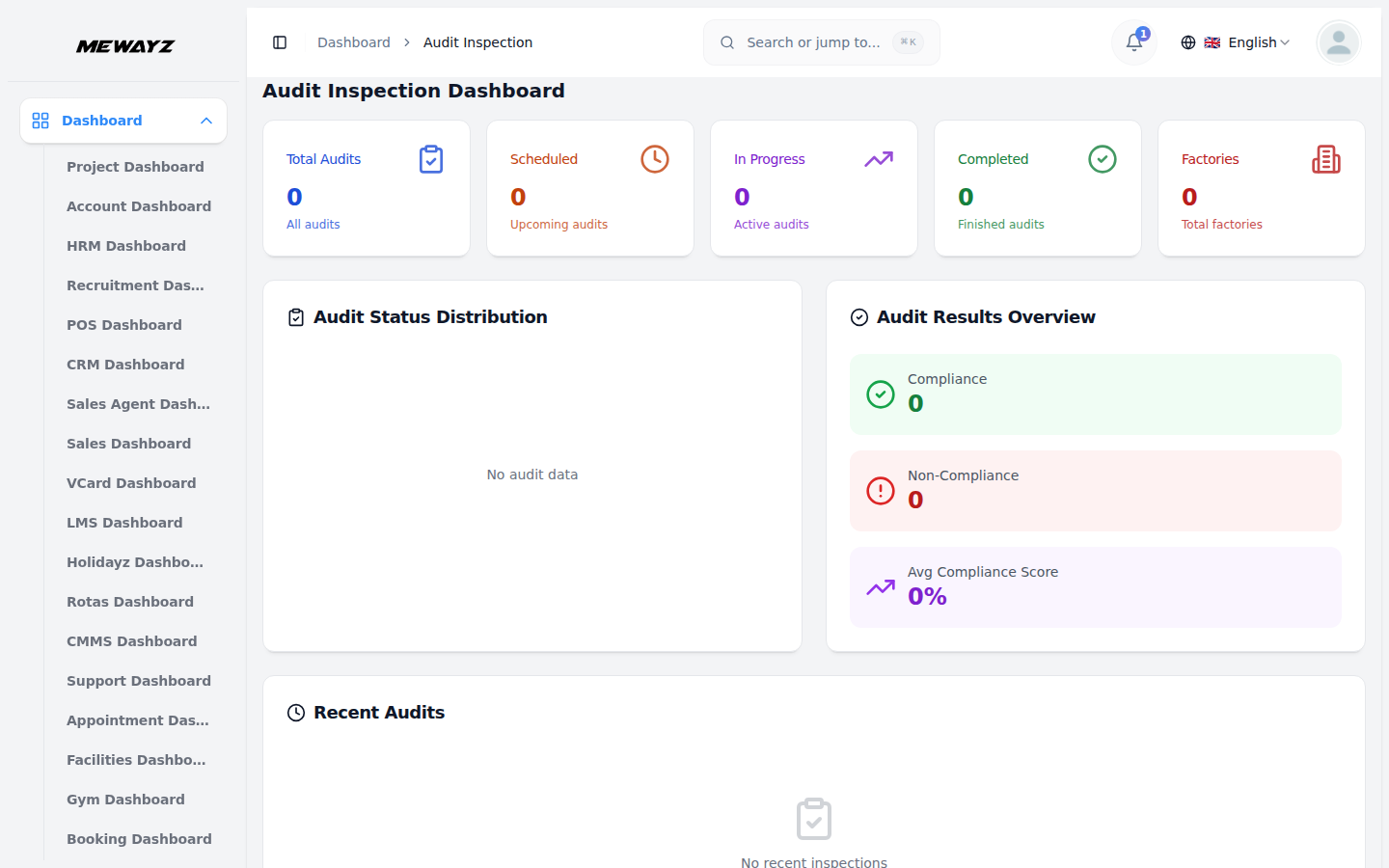
Audit Inspection Mewayzboard
- The Audit Inspection Mewayzboard provides a complete overview of the audit system’s performance
- A row of summary cards at the top displays key metrics: Total Audits, Scheduled (upcoming audits),
- The Audit Status Distribution chart presents a donut graph segmented by Completed, In Progress, and
- The Audit Results Overview panel summarizes compliance outcomes, including total Compliance results,
- The Recent Audits panel lists the latest audit activities, showing audit name, associated factory,
through various visual elements and summary information.
In Progress (active audits), Completed (finished audits), and Factories (total registered factories).
Scheduled audits, allowing quick assessment of overall audit progress.
Non-Compliance results, and the Average Compliance Score (%) across completed audits.
audit type, assigned auditor, scheduled date, and current status badge for quick monitoring and action.
Auditor Dashboard
- The Auditor Dashboard gives each auditor a personalized view of their assigned workload and
- The Today’s Schedule section highlights audits assigned to the auditor for the current date, while
schedule. At the top, summary cards display My Audits, Today, Scheduled, In Progress, and Completed counts.
the Recent Audits panel lists their most recently active audits along with the factory, audit type, date, and current status.
Client Dashboard
- The Client Dashboard provides clients with a focused view of audits associated with their factories,
- The Compliance Overview section shows the total number of Compliance results, Non-Compliance
- The Recent Inspections panel lists the most recent inspections associated with the client, showing
with summary cards displaying My Audits, Scheduled, In Progress, and Completed counts.
results, and the Average Compliance Score (%) across all audits linked to the client.
the audit name, factory, audit type, assigned auditor, date, and current status.
System Setup
- The System Setup section allows administrators to configure foundational data used across the
system. It currently includes Checklist Items, Checklists, Audit Types, and Industry Types, all of which are referenced when creating and managing audits throughout the platform.
Checklist Items
- To add a new checklist item, click the “Create” button on the Checklist Items page. Enter the
- The Checklist Items list displays all configured items in a table with columns for Question, Min
- Available actions include Edit to update or modify an existing checklist item, and Delete to
- Checklist items that are actively referenced in checklists should be managed carefully, as changes
Question in the provided text field and specify a Min Score between 0 and 10, representing the minimum acceptable score during an audit.
Score, and Action.
permanently remove the item from the system.
may affect existing checklists and related audit records.
Checklists
- To add a new checklist, click the “Create” button on the Checklists page. Enter the Name of the
- The Checklists list displays all configured checklists in a table with columns for Name,
- Available actions include Edit to update or modify an existing checklist, and Delete to
- Checklists that are actively linked to audit types should be managed carefully, as changes may
checklist, select one or more Questions from the dropdown (sourced from configured Checklist Items), and toggle the Status switch to enable or disable the checklist upon creation.
Questions, Status, and Action. The Questions column shows a preview of associated questions, with a “+more” indicator when additional questions exist beyond the visible preview.
permanently remove it from the system.
impact ongoing or scheduled audits.
Audit Types
- To add a new audit type, click the “Create” button on the Audit Types page. Enter the Name, select
- The Audit Types list displays all configured types in a table with columns for Name, Checklist,
- Available actions include Edit to update or modify an existing audit type, and Delete to
- Audit types that are actively in use should be managed carefully, as modifications may affect
an associated Checklist from the dropdown to link a predefined set of questions, optionally add a Description for context, and toggle the Status switch to enable or disable the audit type upon creation.
Description, Status, and Action. Status badges indicate whether an audit type is Active or Inactive.
permanently remove it from the system.
audit records and scheduled audits that reference them.
Industry Types
- To add a new industry type, click the “Create” button on the Industry Types page. Enter the Name,
- The Industry Types list displays all configured types in a table with columns for Name,
- Available actions include Edit to update or modify an existing industry type, and Delete to
- Industry types that are actively referenced in the platform should be managed carefully, as
optionally add a Description to explain the characteristics or scope of the industry, and toggle the Status switch to enable or disable the industry type upon creation.
Description, Status, and Action. Status badges indicate whether an industry type is Active or Inactive.
permanently remove it from the system.
changes may affect records and configurations that depend on them.
Manage Factories
- To add a new factory record, click the “Create” button on the Manage Factories page. Select the
- Enter the Factory Name and optionally provide City, State, Country, and Pincode to define the
- The list page displays all factory records in a table with columns for Image, Name, Industry Type,
- Use the Search bar to find a factory by keyword. Apply filters using the Client and Industry Type
- In the Actions column, select View to inspect full details, Edit to modify the record, or Delete to
Client to associate the factory and choose the Industry Type to categorize it by sector.
location. Use the Browse button to upload a Factory Image and optionally enter the full Address in the text area.
Client Name, City, Country, and Action. The layout can be toggled between list view and grid view.
dropdowns, then click Apply to activate filters or Clear to remove them.
permanently remove the factory from the system.
Manage Audits
- To add a new audit record, click the “Create” button on the Manage Audits page. Enter the Audit
- The Checklist dropdown becomes available only after selecting an Audit Type, as it loads the
- The list page displays audit records in a table with columns for Audit Name, Audit Type, Auditor,
- Status badges indicate whether an audit is Scheduled, In Progress, or Completed. The layout can be
- Use the Search bar to find audits by keyword. Apply filters using Factory, Audit Type, Auditor, and
- In the Actions column, select View to inspect full details, Edit to modify the record, or Delete to
Name, select the Factory where the audit will take place, and choose the Audit Type to define the category.
checklist linked to that type. Select the assigned Auditor and use the date picker to set the Schedule Date.
Factory, Schedule Date, Status, and Actions. Audit Name and Schedule Date columns support sorting. Newly created audits are set to Scheduled by default.
toggled between list view and grid view.
Status dropdowns, then click Apply to activate filters or Clear to reset them.
permanently remove the audit. Audits marked as Completed may have restricted editing options to preserve record integrity.
Manage Audit Responses
- To add a new audit response, click the “Create” button on the Manage Audit Responses page. Select
- The Question dropdown becomes available only after selecting an Audit, as it loads the checklist
- The list page displays audit response records in a table with columns for Audit, Question, Score,
- Status badges indicate whether a response has Passed or Failed based on the score compared to the
- Use the Search bar to find responses by question keyword. Apply filters using the Audit and Status
- In the Actions column, select View to inspect full details, Edit to modify the response, or Delete
the Audit from the dropdown to associate the response with a specific audit.
questions linked to that audit. Enter a Score between 0 and 10 and optionally add a Description for additional context. Click Create to save or Cancel to discard the entry.
Status, and Actions. The Audit column supports sorting for easier organization.
minimum score threshold. When responses are submitted, the associated audit status changes to In Progress in the Audit section.
dropdowns, then click Apply to activate filters or Clear to reset them.
to permanently remove it. Responses linked to completed audits may have restricted editing options to preserve record integrity.
Manage Audit Results
- To add a new audit result, click the “Create” button on the Manage Audit Results page. Select the
- The Compliance Score (%) is automatically calculated from submitted audit responses and cannot be
- The list page displays audit results in a table with columns for Audit Name, Compliance Score (%),
- Use the Search bar to find results by audit name. Apply the Status filter to narrow results by
- In the Actions column, select View to inspect full details or Delete to permanently remove the
Audit from the dropdown to associate the result with a specific audit.
manually entered. Select the Status (Compliance or Non-Compliance) and optionally add a Remark for additional notes.
Status, and Actions. Status badges indicate Compliance or Non-Compliance based on the calculated score. When a result is created, the audit status changes to Completed; if deleted, it reverts to In Progress.
compliance outcome, then click Apply to activate or Clear to remove the filter.
result. Audit results are system-generated from responses and cannot be edited to preserve data accuracy and integrity.