Document Template Integration in Mewayz
The Documents Template is a comprehensive document management system designed to help organize and manage document templates efficiently.
Introduction
The Documents Template is a comprehensive document management system designed to help organize and manage document templates efficiently. This software allows you to build reusable document templates with customizable fields, manage document workflows, and collaborate through comments and notes.
Note: This Add-On is dependent on the Documents Add-On, so you need to purchase it first.
How to Install the Add-On?
To Set Up the Document Template Add-On, you can follow this link: Setup Add-On.
How To Use the Document Template Add-On?
- To create a new document template, click the “Create” button at the top of the page. Fill 0 for
- After entering the required information, click “Create” to save your new document template.
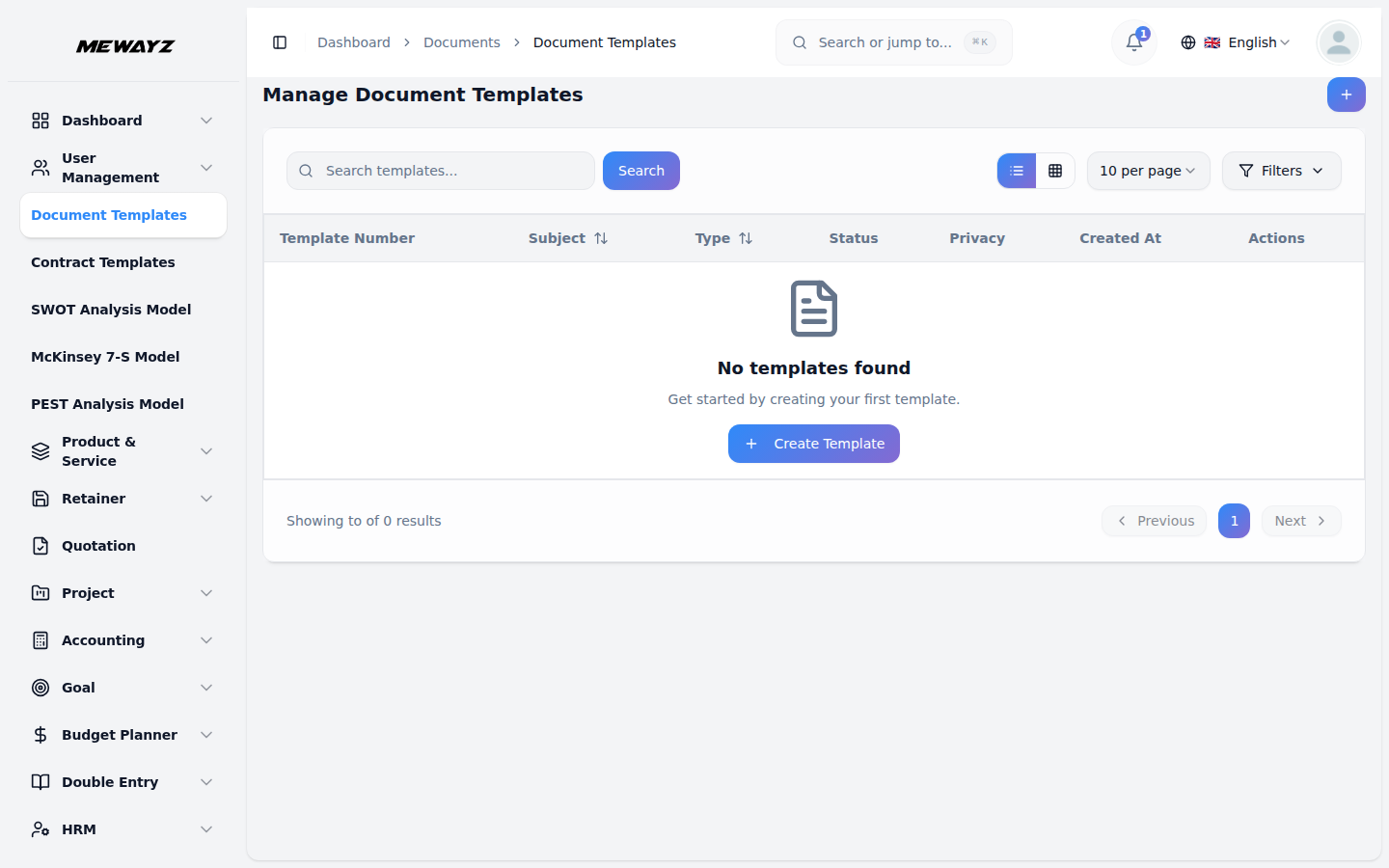
- The list page displays all your document templates in a table format with columns showing Document
- In the Actions column, you can perform several operations. Click “Convert to Document” to
your template. Select the document type from the dropdown menu, which pulls options from the Documents Add-On module. Add any optional notes that provide additional context or instructions for the template.
(template number), Subject, Type (from Documents Add-On), User, and Scope (Public or Private). Use the Search button to find specific templates or the Export button to download your template data.
transform the template into an active document. Use “Duplicate” to create a copy of an existing template. Select “View” to view detailed information about the template. Choose “Edit” to modify the template details, or “Delete” to remove the template permanently.
- When converting a template to a document, enter the document subject in the required field.
Optionally, check the “Notes Convert” checkbox to include template notes, the “Comments Convert” checkbox to transfer any comments, and the “Private Documents” checkbox to set the document as private
- For duplicating a template, fill in the subject and select the type from the Documents Add-On. Add
optional notes and use the checkboxes for “Private Documents,” “Notes Duplicate,” and “Comments Duplicate” based on your requirements.
- The View page provides comprehensive template management with multiple sections. At the top, use
- The Info section displays three cards showing Comments count, Notes count, and Document Details,
- In the Comments section, use the textarea and “Send” button to add new comments. View all existing
- The Notes section works similarly with a textarea and “Add” button for creating new notes. Browse
the “Duplicate” button to copy the template, “Download” to get a PDF format, “Preview” to view the document, “Back” to return to the list, and the Status Dropdown to change the template status.
including subject, type, scope, and user information. Below these cards, you can edit the Document Notes, Document Description, and Additional Description fields, then click “Save” to update the information.
comments with user profiles, comment text, timestamps, user names, and edit indicators. Use the “Edit” or “Delete” actions to manage individual comments.
through all notes showing user profiles, note content, timestamps, user names, and edit status. Manage notes using the “Edit” and “Delete” actions available for each entry.