Custom Alert Detailed Documentation
The Custom Alert Add-On is designed to help you create and manage personalized alerts across your platform with ease. Whether you want to notify users about important updates, scheduled maintenance, deadline reminders, or security alerts, this Add-On gives you full control over the message content, visibility, and timing
Introduction
The Custom Alert Add-On is designed to help you create and manage personalized alerts across your platform with ease. Whether you want to notify users about important updates, scheduled maintenance, deadline reminders, or security alerts, this Add-On gives you full control over the message content, visibility, and timing. With flexible configuration options and targeted delivery, it ensures that the right users receive the right information at the right time, enhancing communication, user engagement, and operational awareness across your system.
How to Install the Add-On?
To Set Up the Custom Alert Add-On, you can follow this link: Setup Add-On.
to use the Custom Alert Add-On?
- After purchasing the Custom Alert Add-On, go to the sidebar and click on the
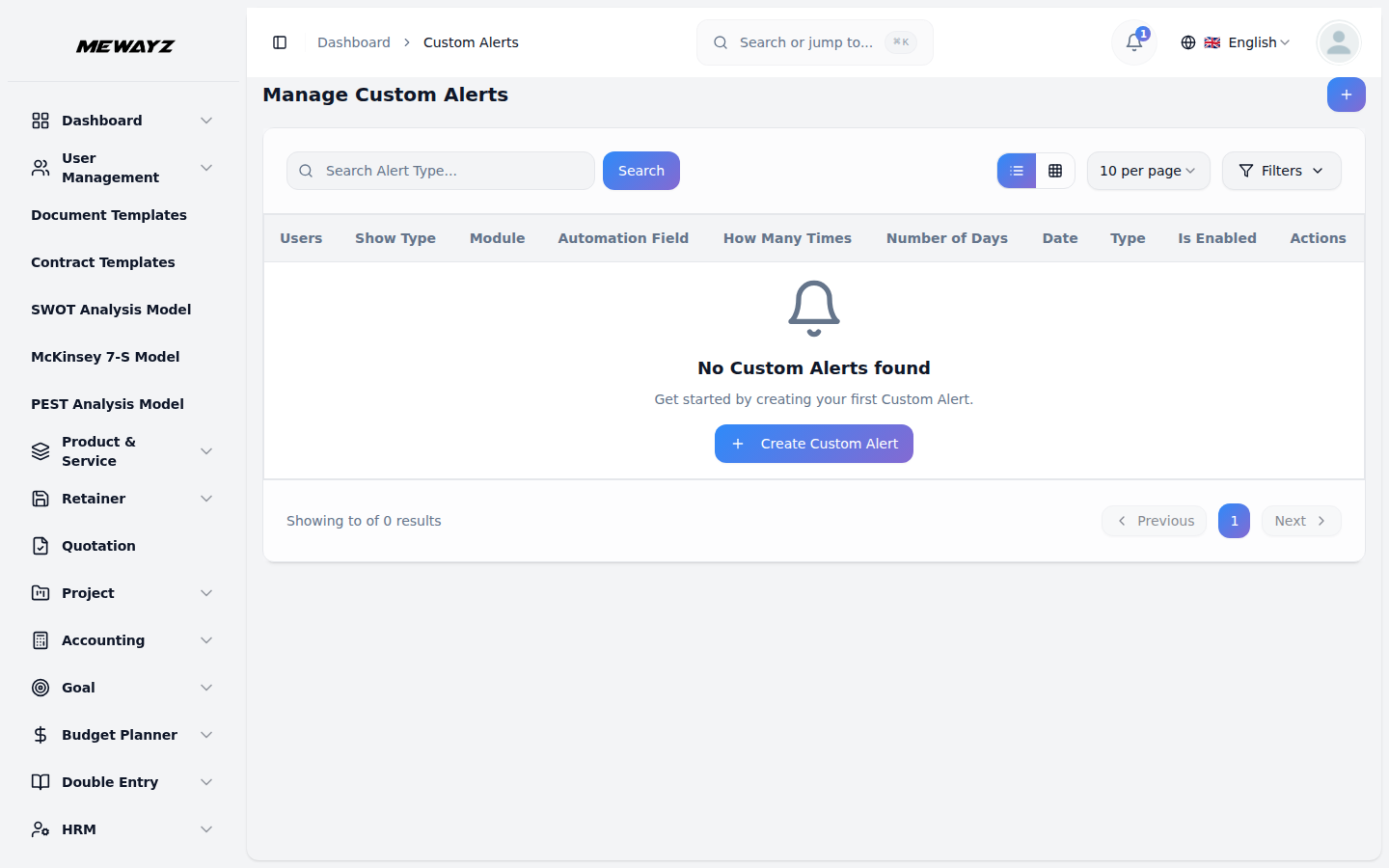
- You will see a page that displays the list of all previously created custom
- To create a new custom alert, click on the Create button given at the top of the
- First, you need to select the alert type that best fits your requirement.
- After selecting the alert type, you will find a show type option where you can
- If you choose the show type as “Now”, the alert will be sent
- If you choose the show type as “Custom”, you can select whether
- There is an enable button given, if you enable that button, the alert will be
- You can also set how many times you want the alert to be shown to the selected
- When you select the Show Type as “Now”, you will be able to
- When you select the Show Type as “Custom“, you will see
- If you select the sales Invoice module, another dropdown will appear allowing
- Once you select a particular sales invoice, only the customers assigned to that
- If you select the purchase Invoice module, another dropdown will appear allowing
- Once you select a particular purchase invoice, only the vendors assigned to that
- There is also a “Number of Days” field where you can enter a
- The number you enter will be added to the current date, and the alert will start
- This automation works on the due date of sales invoices and purchase invoices,
- After you create the custom alert, it will be visible on the custom alert page
Custom Alert option.
alerts.
page.
choose between “Now” and “Custom”.
immediately to all selected users.
the alert is related to a sales invoice or a purchase invoice.
sent to the customer/vendor on the due date of that sales invoice or purchase invoice.
users.
choose multiple users who will receive the alert instantly.
additional fields where you can choose a module, such as “Sales Invoice” and “Purchase Invoice” from under General.
you to select a specific sales invoice from the list.
invoice will see the alert when they log in.
you to select a specific purchase Invoice from the list.
purchase invoice will see the alert when they log in.
number before the alert.
showing before the number of days that date is reached.
which means the alert will be sent to the customer/vendor on the due date itself.
including all the details like alert type, show type, module, automation field, users, is enabled, how many times, number of days, date, and an action column from where you can edit, delete or view the details of alerts easily.